
WINDOWS · 64-BIT
Make yourself at home.
The desktop client for Windows PCs with an Intel or AMD 64-bit processor.
Download for Windows ↓A CLOSER LOOK AT THE CLIENT
Read the room. Keep an eye on your party. Find the next turning. Our custom client brings the tools of the adventure into the same window as the story.
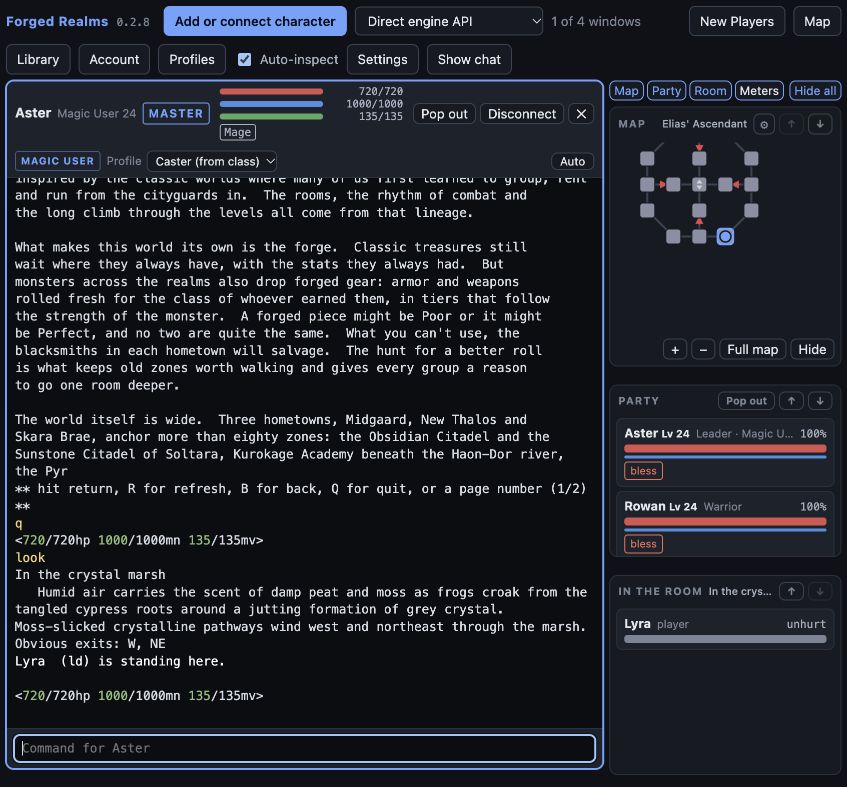
Actual screenshots of client 0.2.8, captured in a local test session with example characters and inventory. These are pictures of the working interface; the game is still in development.
YOUR NEXT ADVENTURE STARTS HERE
Latest beta release. Install once, then use the client’s built-in updater for future releases.
WINDOWS · 64-BIT
The desktop client for Windows PCs with an Intel or AMD 64-bit processor.
Download for Windows ↓MACOS · APPLE SILICON
For Macs with an Apple M-series chip. This build does not support Intel Macs.
Download for Mac ↓LINUX · X86-64
Built for Ubuntu 22.04+ and Linux Mint 21+ on Intel or AMD 64-bit PCs. Choose a portable AppImage or a Debian package for your software installer.
MUDLET, zMUD & OTHER MUD CLIENTS
Play in the same world from Mudlet or another MUD client. If you prefer to start without installing anything, play in your browser.
mud.forgedrealms.net4001Enter the host and port in separate fields. Leave certificate verification enabled. This is a MUD connection, not a web address.
mud.forgedrealms.net and Port to 4001. Check Secure.Already connected? Type MUDLETMAP INSTALL to add or update the map, chat tabs and player panels in this profile.
Create a game connection named Forged Realms. If your version supports SSL/TLS, use the secure settings above. Versions without SSL/TLS can use host mud.forgedrealms.net, port 4000, with secure mode off, then connect and follow the game prompts.
Port 4000 is unencrypted: it does not protect passwords or game traffic in transit. For an encrypted connection, use port 4001 in a TLS-capable client, or use our browser or desktop client.
Once in the game, an account lets your characters share a bank and vault. Type ACCOUNT CREATE <account-name> or ACCOUNT JOIN <account-name> and enter the password at the separate hidden prompt. Keep passwords out of aliases, scripts, and chat.
SIX VIEWS INTO THE ADVENTURE
Choose a view to see the real interface and what you can do with it. Open any screenshot at full size for a closer look.
01 / Adventure & party
The main window puts the game’s room descriptions and conversation alongside the information you need to act.
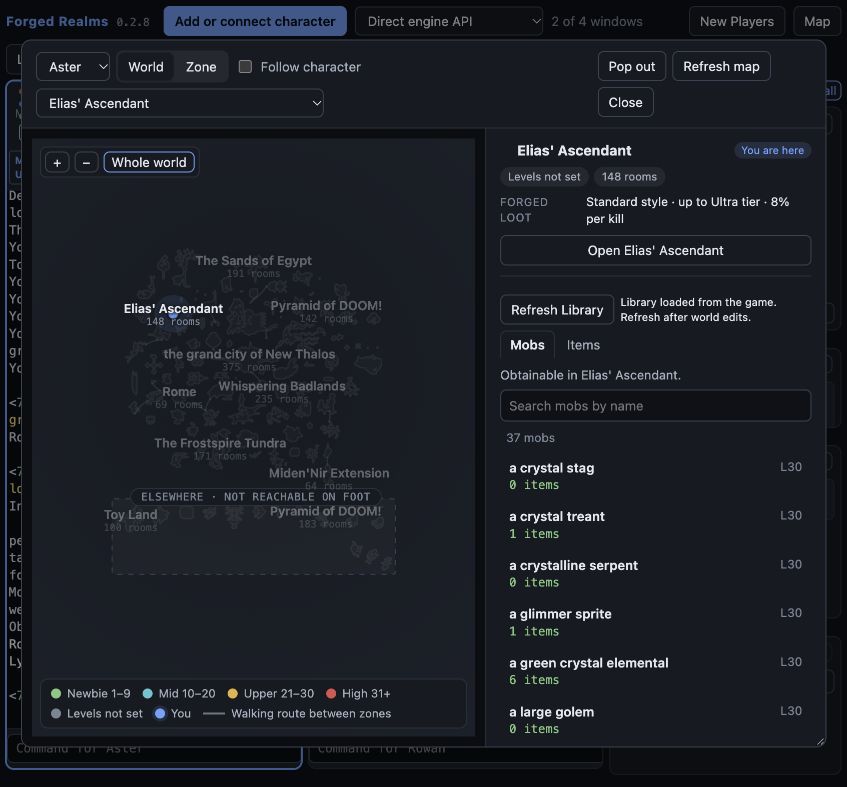
02 / World atlas
Step back from an individual room to browse the game’s available atlas. Select a zone, see its information, then open its floor map.
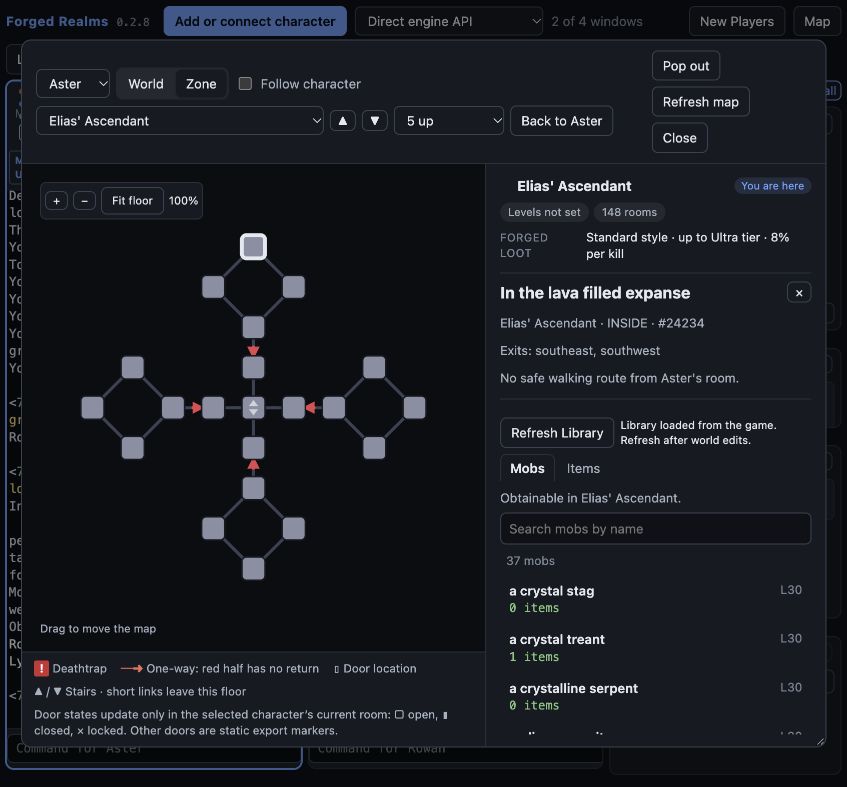
03 / Floor maps
The map shows a floor plan of the game’s three-dimensional rooms. Browse different floors and select a room to investigate your route.
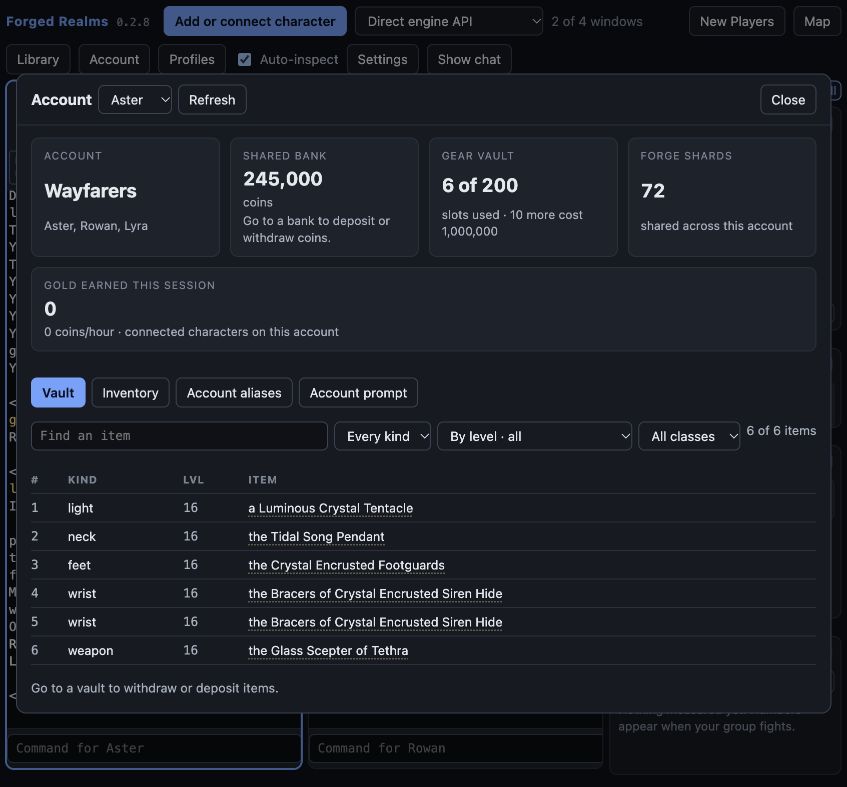
04 / Account & gear
Open the Account window to browse your shared collection and carried items. The current game starts an account vault at 200 slots.
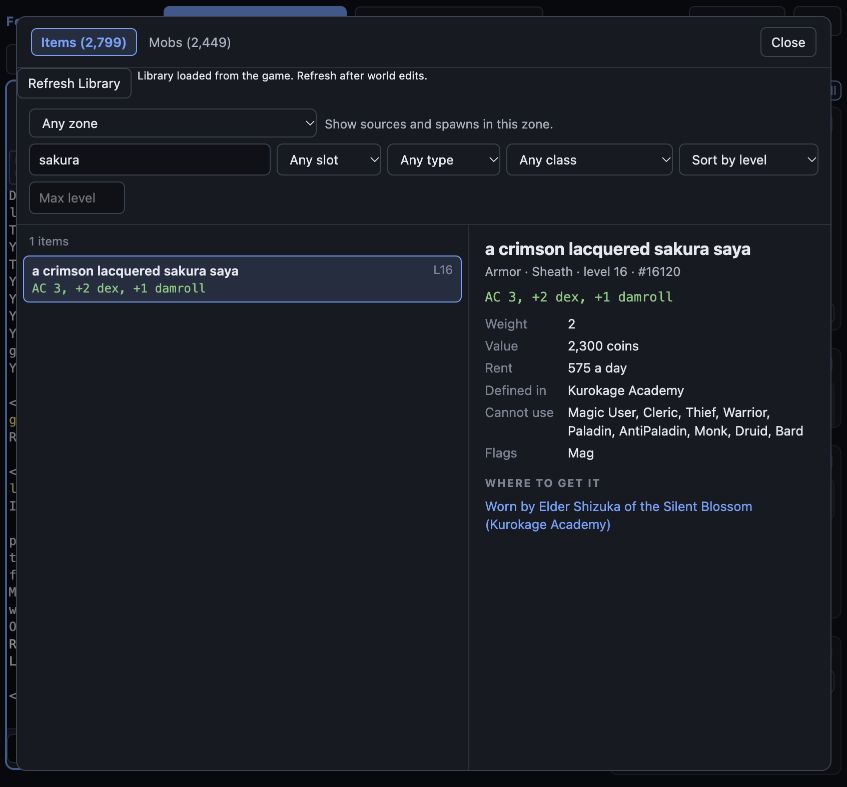
05 / Game Library
The Library reads reference data exported by the game. Search equipment and mobs, then follow the available source information to plan your next trip.
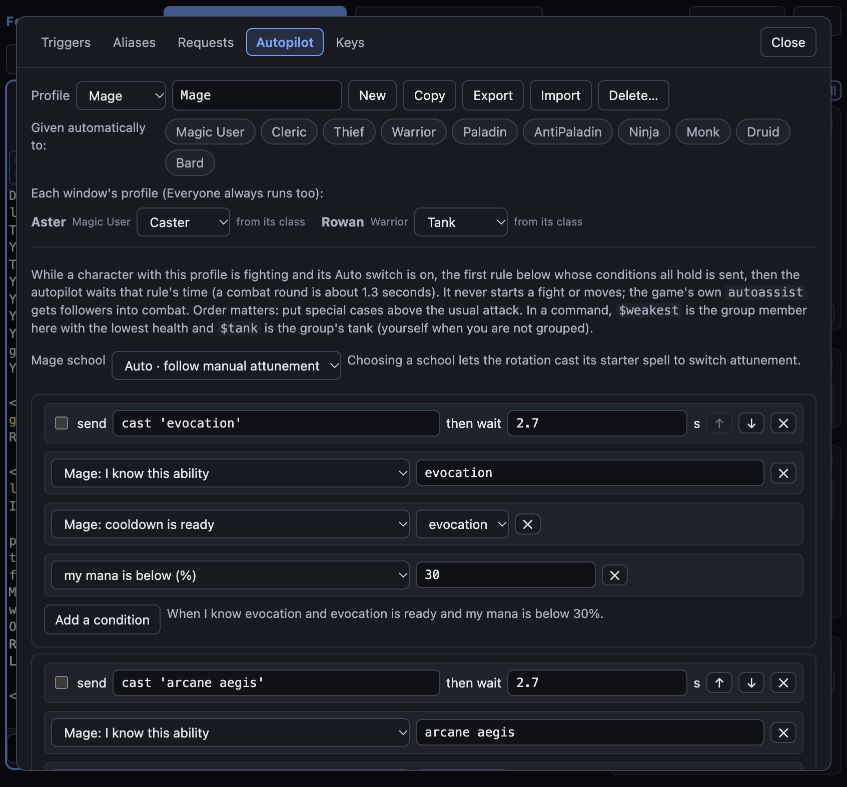
06 / Profiles & autopilot
Profiles bring triggers, aliases, requests, keys, and combat rules together. Choose a profile for each character and decide which automation to enable.
MAKE ROOM FOR YOUR PLAYSTYLE
The same tools stay close as you change characters, explore another floor, or settle into a different class.
Connect multiple characters in the same client. Each pane has its own vitals, command line, and profile. Choose a master window, resize the panes, or pop a character into a separate window. Game policy allows up to three characters at once, each actively played by you. Start with one and add others when you are comfortable.
Keep a small map beside the text or open a larger map in its own window. Follow-character mode tracks your position and floor; pause it to browse, then return to your character.
Choose a theme and text size, arrange the side panels, and edit triggers, aliases, key bindings, and class profiles. Export a backup, or use account settings sync to carry a supported setup between computers.
BEFORE YOU CHANGE YOUR KIT
Inspect an item from supported game text or account lists. Pin the card, choose a replacement slot, and compare its item bonuses with what you wear.
See class restrictions and supported stat changes before choosing a slot. The client labels details it can’t calculate; combat outcomes depend on more than the item bonuses shown here.
Read about equipment & the Forge ↗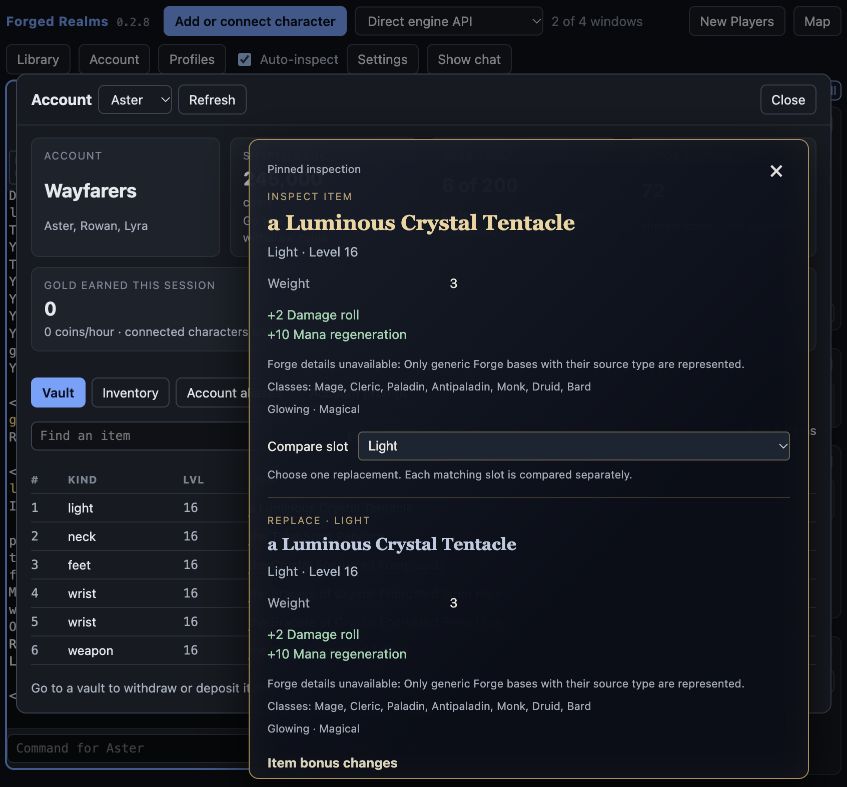
THE NEXT CHAPTER IS TAKING SHAPE
The desktop and browser clients are available to try in beta. Open the browser client to connect with your game account, or download the desktop app above. Sign up for development news as the realms take shape.
NEWS FROM THE REALMS
The beta is open to try now. Leave your email for development updates, new adventures, and release news.